All Color Spaces Explained: From RGB to OKLCH
April 18, 2026
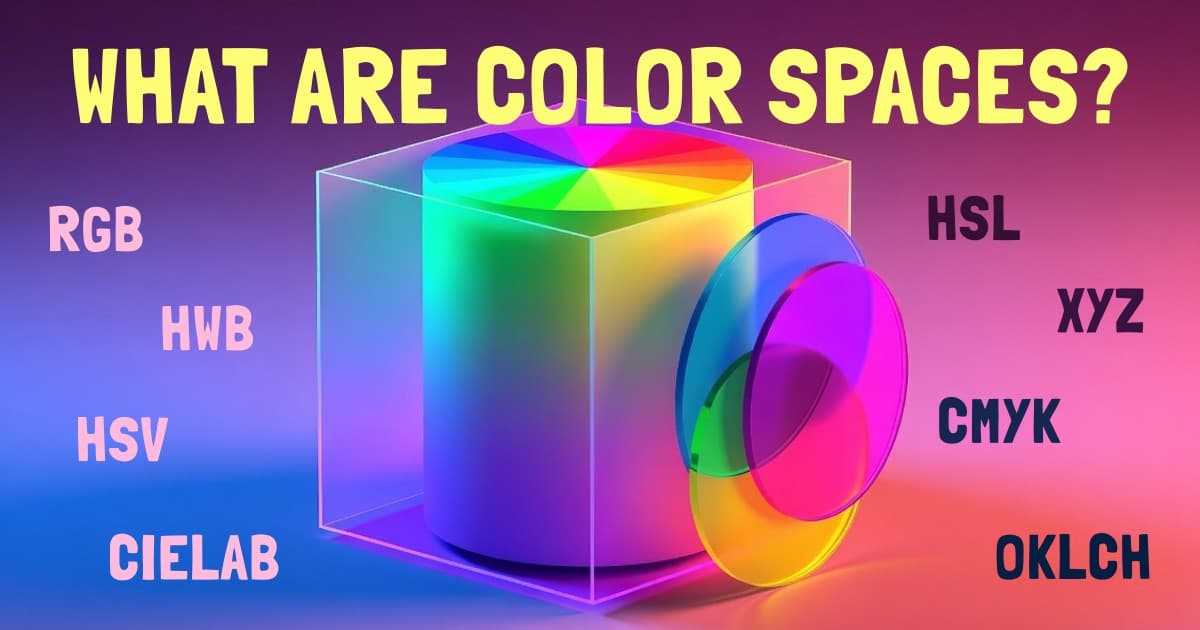
A color space is a system for organizing and describing colors as numbers. Every time you type a hex code, adjust an HSL slider, or export a CMYK file for print, you're working inside a color space — whether you realize it or not.
If you've ever wondered why the same color looks different on your screen and on paper, or why some color pickers feel more intuitive than others, the answer lies in color spaces. Understanding them makes you a better designer and a better developer.
I built Huebert to support multiple color spaces natively, and this guide will explain why that matters. Let's start from the basics and work through every space you'll actually encounter in practice.
What Is a Color Space?
A color space is a mathematical model that maps colors to coordinates — typically two, three, or four numbers. Just as a map projects the 3D Earth onto a 2D sheet of paper, a color space projects the enormous range of colors humans can perceive into a coordinate system that software (and people) can work with.
Every color space makes trade-offs:
- Some prioritize hardware. RGB maps directly to how screens emit light. CMYK maps to how printers lay down ink.
- Some prioritize human intuition. HSL and HSV let you think in terms of hue, saturation, and brightness — concepts that feel natural to designers.
- Some prioritize perceptual accuracy. CIELAB and OKLCH are built so that equal numeric distances correspond to equal perceived differences in color.
There's no single "best" color space. The right one depends on what you're doing. That's exactly why there are so many.
Why Are There So Many Color Spaces?
Short answer: because color is complicated and different tasks need different models.
A screen mixes red, green, and blue light. A printer mixes cyan, magenta, yellow, and black ink. A human eye has three types of cone cells with overlapping sensitivities. No single coordinate system can perfectly serve all three.
On top of that, the goals vary:
- A web developer needs a space that maps to CSS values and renders correctly in browsers.
- A print designer needs a space that predicts how ink will look on paper.
- A color scientist needs a space where distances between colors match how different they look.
- A UI designer needs a space where "make this a bit lighter" actually produces something that looks a bit lighter — not washed out or shifted in hue.
Each color space was invented to solve a specific set of problems. Some — like CIEXYZ — serve as a foundational reference that other spaces are mathematically derived from (CIELAB, CIELUV, and OKLCH all convert through XYZ). Others, like CIELUV, played an important historical role but have been largely superseded by newer models. In this guide I'll focus on the spaces you'll actually encounter and use in practice.
RGB — The Language of Screens
Coordinates: Red (0–255), Green (0–255), Blue (0–255)
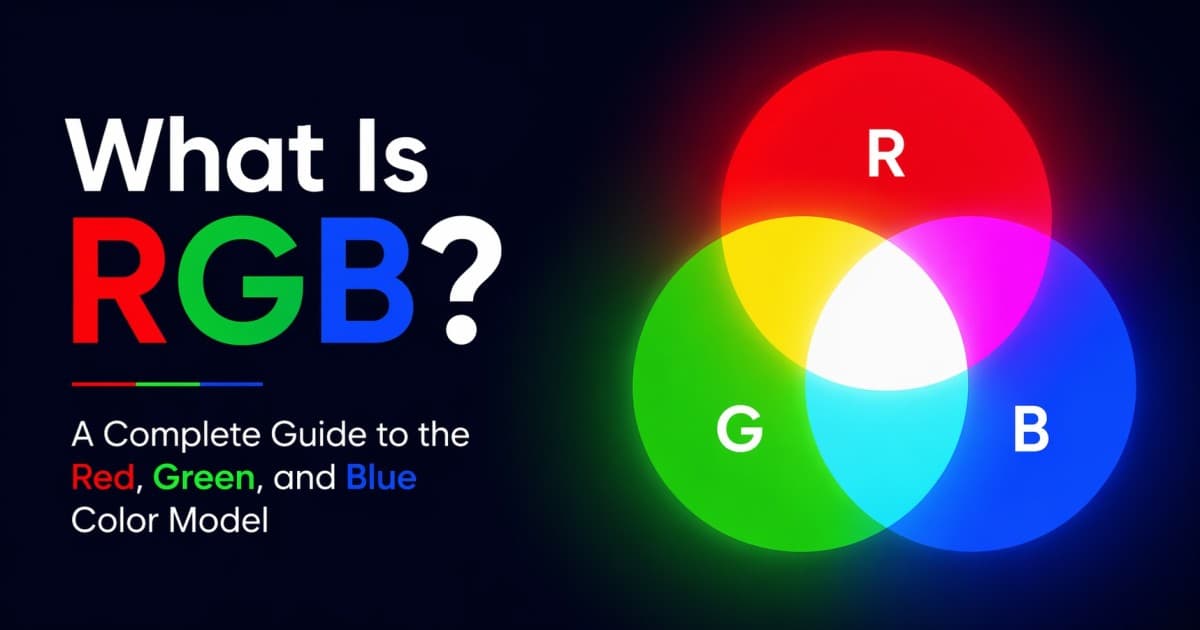
RGB is an additive color model. It describes color by mixing three channels of light — red , green , and blue — at different intensities. When all three are at maximum, you get white . When all are at zero, you get black .
Every pixel on your monitor, phone, and TV works this way. The display physically emits red, green, and blue light, and your eye blends them into the color you perceive.
HEX codes (like #E9487C) are just a shorthand for RGB values written in hexadecimal. #E9487C is the same as rgb(233, 72, 124).
You'll often see the term sRGB — it stands for "standard RGB" and defines a specific RGB color space standardized in 1996. sRGB pins down exactly which red, green, and blue primaries are used, plus a gamma curve that describes how numeric values map to brightness. It's the default color space of the web, CSS, and virtually all consumer displays. When someone says "RGB" without qualification, they almost always mean sRGB.
When to use RGB
- Web development. RGB and HEX are the default in CSS and virtually every design tool.
- Screen-based design. Anything that will be displayed on a monitor — websites, apps, presentations, social media graphics.
- Programmatic color manipulation. Many libraries work natively in RGB.
Limitations
RGB is not perceptually uniform. Changing a channel value by 20 might produce a dramatic shift in one part of the spectrum and a barely noticeable change in another. This makes it hard to create smooth gradients or evenly spaced color ramps by adjusting numbers manually.
Drag the sliders to see how mixing red, green, and blue light creates any screen color:
This is the short version of RGB. If you want the full picture — bit depth, HEX shorthand, sRGB vs. Adobe RGB vs. Display P3, and when to switch to a different model — I wrote a dedicated guide: What is RGB?.
HSL — Hue, Saturation, Lightness
Coordinates: Hue (0–360°), Saturation (0–100%), Lightness (0–100%)
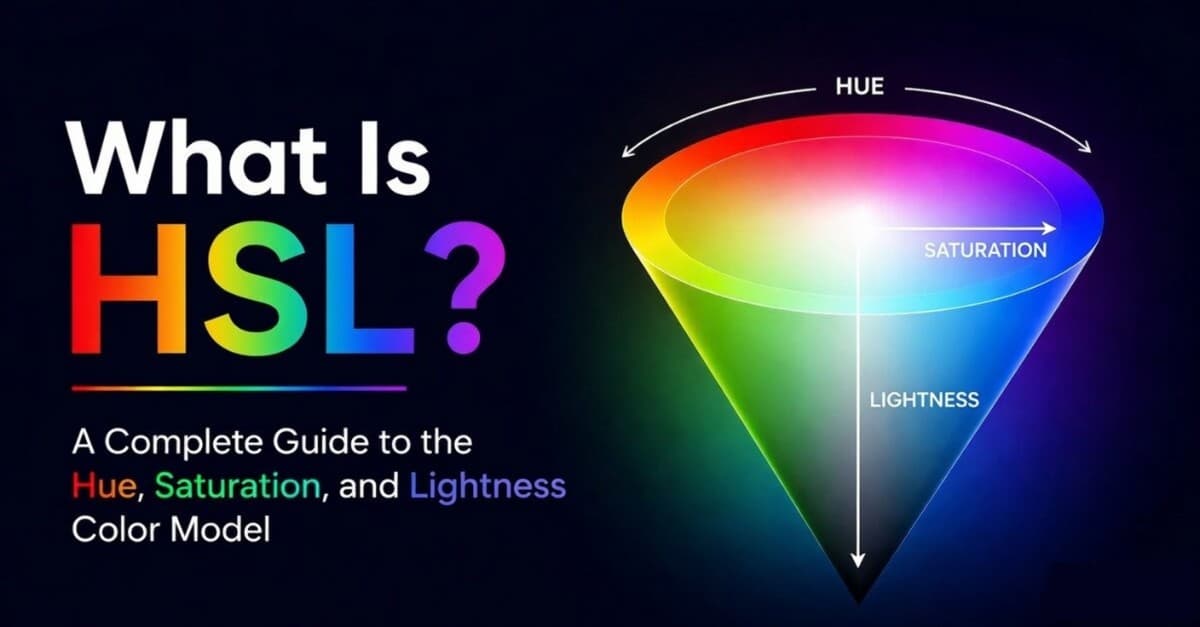
HSL re-maps the RGB cube into a cylinder. Instead of thinking in red/green/blue channels, you think in terms that are more intuitive:
- Hue is the base color as a position on the color wheel (0° = red , 120° = green , 240° = blue ).
- Saturation is the intensity — 0% is fully gray, 100% is the purest form of the hue.
- Lightness is how light or dark the color is — 0% is black, 100% is white, 50% is the "pure" hue.
HSL is the go-to model in most CSS color pickers and a native CSS format (hsl(340, 82%, 60%)). It is also useful for nudging a hue warmer or cooler when you are shaping color temperature in a palette. This section is the short version; for the full breakdown, see What is HSL?.
When to use HSL
- CSS & web design. HSL is natively supported and widely used.
- Quick palette generation. Rotating the hue while keeping saturation and lightness constant is a fast way to build harmonious palettes.
- UI theming. HSL makes it easy to generate light/dark variants of a base color.
Limitations
HSL's notion of "lightness" doesn't match human perception. A pure yellow at hsl(60, 100%, 50%) and a pure blue at hsl(240, 100%, 50%) both claim 50% lightness, but yellow looks dramatically brighter. This means "set lightness to 40%" produces inconsistent visual results across different hues — a real problem when building accessible color systems.
Try adjusting Hue while keeping Saturation and Lightness constant — notice how intuitive it is to find a color:
HSV (HSB) — Hue, Saturation, Value
Coordinates: Hue (0–360°), Saturation (0–100%), Value/Brightness (0–100%)
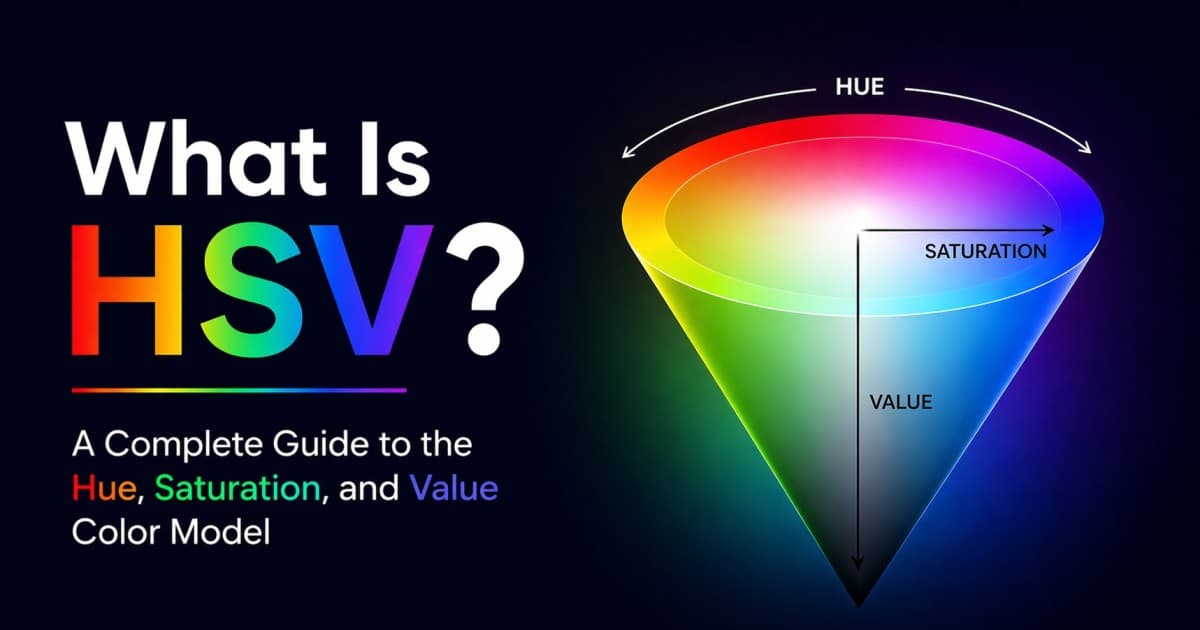
HSV is closely related to HSL but uses Value (sometimes called Brightness) instead of Lightness. The key difference: in HSV, 100% value with 100% saturation gives you the purest, most vivid version of a hue. In HSL, you get the purest hue at 50% lightness. For the full breakdown, see What is HSV?.
HSV models how we think about mixing paint or pigment: start with a pure color, then add black (lower value) or add white (lower saturation).
When to use HSV
- Color pickers. Most visual color pickers — including the one in Huebert, Photoshop, and Figma — use HSV internally. That rectangular gradient where you click to choose a color? That's the HSV saturation-value plane.
- Art and illustration. HSV maps better to how artists think about color mixing.
HSV vs. HSL
Both share the Hue axis and both are transformations of RGB. The difference lies in how they model brightness:
| HSL | HSV | |
|---|---|---|
| Pure hue at | 50% Lightness, 100% Saturation | 100% Value, 100% Saturation |
| White at | 100% Lightness | 100% Value, 0% Saturation |
| Black at | 0% Lightness | 0% Value |
| Primary use | CSS, web dev | Color pickers, art |
Neither is perceptually uniform. Both struggle with the same yellow-vs-blue brightness problem.
Compare with the HSL sliders above — notice how Value behaves differently from Lightness:
HWB — Hue, Whiteness, Blackness
Coordinates: Hue (0–360°), Whiteness (0–100%), Blackness (0–100%)
HWB is another cylindrical remap of RGB, but it takes a different approach than HSL or HSV. Instead of saturation and lightness/value, you work with Whiteness (how much white is mixed in) and Blackness (how much black is mixed in). It's the model that most closely matches how people intuitively describe colors: "take red, add some white, add a little black."
HWB is mathematically derived from HSV — Whiteness equals (1 - Saturation) × Value and Blackness equals 1 - Value — but the mental model is simpler and more natural for non-technical users.
CSS natively supports HWB with the hwb() function (hwb(340 28% 9%)).
When to use HWB
- CSS. Natively supported and arguably the most intuitive cylindrical model for quick color adjustments.
- Tinting and shading. The Whiteness and Blackness sliders directly correspond to adding white or black paint — much more intuitive than manipulating saturation and lightness simultaneously.
- Teaching color. HWB is the easiest model to explain to someone who has never worked with digital color before.
Limitations
HWB shares the same perceptual non-uniformity as HSL and HSV — it's still a transformation of RGB, not a perceptual model. When Whiteness + Blackness exceeds 100%, both values are scaled proportionally, producing only neutral grays.
Try pushing Whiteness and Blackness — the controls feel like mixing paint with white and black:
CMYK — The Language of Print
Coordinates: Cyan (0–100%), Magenta (0–100%), Yellow (0–100%), Key/Black (0–100%)
CMYK is a subtractive color model — the opposite of RGB. Instead of adding light, you're removing it by layering ink on white paper. Cyan absorbs red. Magenta absorbs green. Yellow absorbs blue. In theory, combining all three gives you black, but in practice the result is a muddy dark brown, so a separate black (Key) channel is added.
When to use CMYK
- Print design. If your colors will be printed — business cards, packaging, posters, magazines — CMYK is the final destination.
- Pre-press preparation. Converting to CMYK early in your workflow helps you spot out-of-gamut colors before they become printing surprises.
Limitations
CMYK has a smaller gamut (range of representable colors) than RGB. Vibrant neon greens and electric blues that look stunning on screen simply can't be reproduced in CMYK. This is why designs often look more muted in print than on screen — it's not a mistake, it's a physical limitation of ink on paper.
CMYK also depends on the specific printer, paper, and ink being used. The same CMYK values can produce noticeably different colors on coated vs. uncoated paper. For precise work, you need ICC profiles specific to your print setup.
Drag the ink channels to see how subtractive mixing works — notice how adding ink makes colors darker, the opposite of RGB:
CIELAB (L*a*b*) — Perceptually Uniform Color
Coordinates: L* (Lightness, 0–100), a* (green–red axis), b* (blue–yellow axis)
CIELAB was designed in 1976 by the International Commission on Illumination (CIE) with one goal: make numeric distance correspond to perceived difference. A shift of 10 units in CIELAB should look like the same amount of change whether you're in the reds, blues, or greens.
- L* represents lightness from black (0) to white (100).
- a* runs from green (negative) to red (positive).
- b* runs from blue (negative) to yellow (positive).
CIELAB is device-independent — it describes color as humans see it, not as any particular hardware produces it. This makes it a common reference space for color management systems.
When to use CIELAB
- Color science and measurement. CIELAB is the standard for calculating color difference (ΔE) in industries like manufacturing, textiles, and food.
- Image processing. Many algorithms operate in LAB because manipulating the L* channel adjusts brightness without affecting color.
- Accessibility testing. Perceptual uniformity makes LAB useful for evaluating whether two colors are truly distinguishable.
- Cross-device color matching. Converting through LAB can help maintain consistency between screen and print.
Limitations
CIELAB is not perfectly uniform — particularly in the blue region, where perceived differences can be up to four times larger than the numbers suggest. This limitation directly motivated the development of newer spaces like OKLAB and OKLCH.
Experiment with the a* and b* axes — these map to opponent color channels (green–red and blue–yellow), a fundamentally different way of describing color:
OKLCH — The Modern Perceptual Space
Coordinates: L (Lightness, 0–100%), C (Chroma, 0–0.4 for sRGB colors), H (Hue, 0–360°)
OKLCH is the cylindrical (polar) form of OKLAB, a color space designed by Björn Ottosson in 2020 to fix CIELAB's remaining non-uniformities. It has quickly become the preferred perceptual color space for modern CSS and design systems.
The "OK" stands for the improvements over CIELAB:
- Better perceptual uniformity. Equal numeric steps produce more consistent visual changes across the entire hue range.
- Predictable lightness. Two colors with the same L value actually look equally bright — unlike HSL.
- Hue stability. Changing lightness or chroma in OKLCH doesn't cause unexpected hue shifts, a common problem in CIELAB.
Wide gamut: beyond sRGB
One of OKLCH's most important properties is that it can describe colors outside the sRGB gamut — vivid, saturated colors that standard monitors can't display and that HEX, RGB, and HSL simply can't represent. These colors are real: modern displays with the Display P3 or Rec. 2020 gamut can show them, and CSS lets you target them with oklch().
This means OKLCH is future-proof. As wide-gamut displays become standard (most Apple devices already ship with P3 screens), designs defined in OKLCH can take advantage of the richer color range automatically. Colors defined in HEX or RGB are permanently limited to sRGB.
The trade-off: if you push chroma high enough in OKLCH, the resulting color may be out-of-gamut for sRGB screens. Browsers handle this gracefully by mapping to the closest displayable color, but it's something to be aware of. In the interactive sliders below, you may notice that pushing Chroma very high stops producing visible changes — that's the sRGB gamut boundary.
When to use OKLCH
- Modern CSS. OKLCH is natively supported in CSS (
oklch(0.65 0.15 340)) and recommended by the CSS Color Level 4 specification. It's the best space for defining design tokens and theme variables. - Perceptually consistent palettes. Because lightness is reliable, you can generate shade scales (light to dark variants) that look evenly stepped to the human eye.
- Accessible color systems. When you need to guarantee that colors meet contrast requirements, OKLCH's lightness channel gives you a trustworthy foundation.
- Gradients. Gradients interpolated in OKLCH avoid the muddy middle tones and hue shifts that plague RGB and HSL gradients.
- Wide-gamut design. If you're targeting P3 displays, OKLCH is the only practical way to define and work with those extra colors in CSS.
OKLCH vs. CIELAB
| CIELAB | OKLCH | |
|---|---|---|
| Created | 1976 | 2020 |
| Uniformity | Good, but inconsistent in blues | Significantly better across all hues |
| Hue shifts | Can shift when adjusting lightness | Stable hue channel |
| CSS support | Native (lab()) | Native (oklch()) |
| Best for | Color science, measurement | Design systems, CSS, palette generation |
If you're starting a new project today and need a perceptual space, OKLCH is the one I'd recommend. CIELAB remains important for compatibility with existing tools and scientific workflows. For a focused comparison of modern UI workflows, read OKLCH vs OKLAB vs HSL.
Adjust the Lightness slider and notice how the perceived brightness changes evenly — compare this to the HSL Lightness slider above. The sliders show Lightness as 0–100% (spec value 0–1) and Chroma scaled by 1000 (so 195 = 0.195 in the spec) to keep the controls easy to use:
OKLAB — OKLCH's Cartesian Sibling
Coordinates: L (Lightness, 0–100%), a (green–red axis, ~-0.2 to +0.2), b (blue–yellow axis, ~-0.2 to +0.2)
OKLAB is the Cartesian form of the same color space that OKLCH represents in polar coordinates. Where OKLCH uses Chroma and Hue (angle + distance from center), OKLAB uses two straight axes — a (green to red) and b (blue to yellow) — just like CIELAB, but with OKLAB's improved uniformity.
The relationship is the same as between CIELAB and CIELCh: Cartesian vs. polar coordinates on the same underlying space. C = √(a² + b²) and H = atan2(b, a).
When to use OKLAB over OKLCH
- Color difference calculations. Euclidean distance in OKLAB directly gives you a perceptual difference metric — simpler math than working with angles in OKLCH.
- Image processing and blending. Mixing two colors in OKLAB (linear interpolation of L, a, b) produces perceptually smooth results without hue shifts.
- CSS. Also natively supported (
oklab(0.65 0.15 0.03)).
For most design work OKLCH is more intuitive because Hue and Chroma are easier to reason about than a/b axes. Use OKLAB when you need the math to be simple — blending, averaging, or computing distances. I cover that practical split in more detail in OKLCH vs OKLAB vs HSL.
Compare these a/b sliders with CIELAB's a*/b* above — same axis concept, better uniformity. The sliders are scaled ×1000 (so 200 = center, 0 = -0.2, 400 = +0.2):
Comparison Table: All Color Spaces at a Glance
| Color Space | Type | Channels | Perceptually Uniform | Primary Use |
|---|---|---|---|---|
| RGB / HEX | Additive | R, G, B | No | Screens, web, CSS |
| HSL | Cylindrical (of RGB) | H, S, L | No | CSS, theming |
| HSV / HSB | Cylindrical (of RGB) | H, S, V | No | Color pickers, art |
| HWB | Cylindrical (of RGB) | H, W, B | No | CSS, intuitive tinting/shading |
| CMYK | Subtractive | C, M, Y, K | No | Print design, pre-press |
| CIELAB | Perceptual | L*, a*, b* | Approximately | Color science, image processing |
| OKLCH | Perceptual (cylindrical) | L, C, H | Yes (best available) | Modern CSS, design systems |
| OKLAB | Perceptual (Cartesian) | L, a, b | Yes (best available) | Color math, blending, CSS |
How to Choose the Right Color Space
Here's my practical framework:
Designing for screens? Work in HSL or OKLCH for picking colors, output as RGB/HEX for CSS. Use OKLCH if you need perceptually consistent shade ramps or you're building a design system.
Designing for print? Start in RGB or HSL for ideation, but convert to CMYK early. Check your colors against the printer's ICC profile so you aren't surprised by gamut limitations.
Building accessible color systems? Use OKLCH. Its lightness channel is the most reliable predictor of perceived brightness, which makes contrast calculations trustworthy.
Working with color science or image processing? CIELAB is the established standard. Use OKLCH if you need better uniformity and don't need backward compatibility with existing LAB-based tooling.
Using a color picker? You're probably in HSV without knowing it. That's fine — it's a great space for visual selection. Just be aware that the "brightness" you see isn't perceptually calibrated.
Wrapping Up
Color spaces aren't academic curiosities — they're practical tools. Each one was built to solve a specific problem, and understanding the differences means you can:
- Pick the right tool for the job. RGB for screens, CMYK for print, OKLCH for perception.
- Debug color issues. When a gradient looks muddy or a shade scale looks uneven, switching color spaces usually reveals why.
- Build better systems. Design tokens defined in OKLCH produce more consistent results than tokens in HSL or RGB.
- Communicate precisely. When you say "make it 10% lighter," the result depends entirely on which color space you're working in. Now you know which one to choose.
This article is an overview. For deeper dives, start with What is RGB?, What is HSL?, What is HSV?, OKLCH vs OKLAB vs HSL, and Color Temperature in Design. In the meantime, the best way to build intuition is to experiment.
Viral products havethree colors
Huebert generates high-contrast color schemes of background, foreground, and primary for beautiful and accessible UIs.
Generate your scheme